

Analysis of Factors Affecting the Difference in Charging Speed ​​of USB-C Data Cables.

Analysis of Factors Affecting the Difference in Charging Speed ​​of USB-C Data Cables

Let me start with a scene I’ve been in more times than I’d like to admit: I’m about to leave the house, my laptop battery is down to single digits, my phone is flashing red, and I grab a random USB-C cable from my desk. I plug it in, hoping for a quick top-up… only to watch the battery crawl upward at a painfully slow pace—or worse, not charge at all.

If that’s ever happened to you, you know how frustrating it feels. With USB-C being everywhere now, it’s tempting to think a cable is a cable. But after testing hundreds of them, I can tell you firsthand: the difference between a solid, well-built cable and a cheap one is night and day.

I’ve seen flimsy wires overheat, laptops that refuse to charge properly, and external drives that transfer files at a snail’s pace simply because the wrong cable was used. That’s why I put this guide together—to help you understand what actually goes on inside these little wires and how to pick one that works for your needs.

Do All USB-C Cables Perform the Same?

At first, I assumed they did. After all, the connectors look identical. But once I started comparing them side by side, the differences became obvious.
USB-C itself is just a shape standard—it tells you the plug will fit, not what’s inside. The actual performance depends on the supported version:

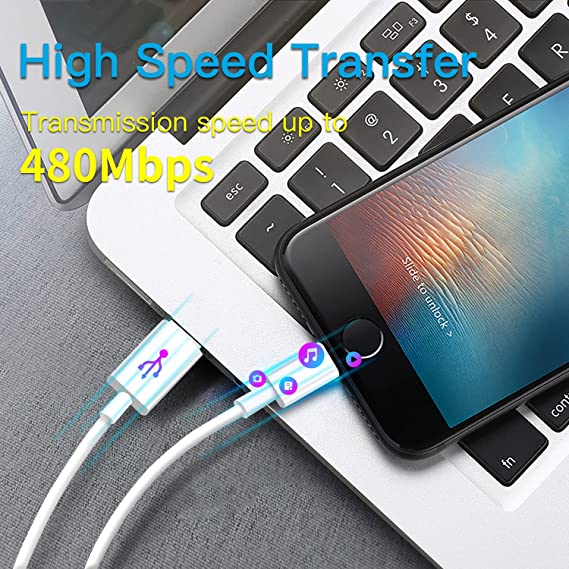
  • USB 2.0 handles up to 480 Mbps and about 60W charging. Fine for phones, frustrating for laptops.
  • USB 3.x (3.1 / 3.2) can push 5–20 Gbps with higher charging power, good for external drives and quicker top-ups.
  • USB4 reaches 40 Gbps and 240W with PD 3.1, ideal for power-hungry laptops or professional workflows.
  • Thunderbolt 3/4 looks the same but delivers elite-level performance: 40 Gbps plus video and charging simultaneously.

On the surface, two cables on your desk may appear identical. In practice, one might only charge a phone slowly while the other can run a 4K monitor and power a workstation.

Here’s a mistake I’ve seen many people make (and I’ve been guilty of it too): assuming every USB-C cable can handle data. The truth is some are designed purely for charging. They’re inexpensive and fine for power banks or wall plugs, but useless if you’re trying to move files. On the other hand, full-featured cables handle both charging and data, and some even support video. If you’re using a dock or an external display, only those will get the job done. I’ve lost count of how many times I’ve plugged in the wrong type during testing—only to realize later why things weren’t working.

What Affects the Charging Efficiency of a USB-C Cable?

Over the years, I’ve noticed charging speed isn’t just about the charger—it’s about the entire chain. I remember once testing a setup where the charger was more than capable and the laptop supported fast charging, but the cable held everything back. That’s when it really hit me: the cable can make or break the whole experience. Several factors determine the charging efficiency of a USB-C cable, including cable specifications, fast charging protocol level, cable length, port type, workmanship quality, and compatibility. Out of professional habit, I check these aspects every time I get a cable.

  • One of the first things I check is wire thickness. If a cable feels flimsy, I get suspicious right away. Thicker wires (lower AWG numbers) carry current better. For example, a 20AWG cable can deliver much more power safely than a 28AWG one. Thin wires don’t just slow charging—they can heat up, which is something I’ve actually felt when testing cheap cables.
  • Then there are charging standards. USB Power Delivery (PD) has become my go-to recommendation because it scales up to 240W with PD 3.1 and works across laptops, tablets, and high-end phones. Qualcomm Quick Charge (QC) is popular with Android devices, but it doesn’t always overlap neatly with PD. When the charger, cable, and device don’t align, charging falls back to slower speeds—I’ve run into that mismatch more than once.
  • Cable length matters too. I love the flexibility of a long cable at home, but I know it slows things down. Under one meter is ideal for maximum speed, one to two meters usually works fine, but beyond that I avoid them for laptops. That’s why I keep a short cable in my travel bag—it always charges faster when I need it most.
  • Connector type also plays a role. A USB-C to USB-C cable usually supports full performance, while USB-A to USB-C cables are limited by older standards (often capped at 5V/2.4A).
    The difference isn’t only about the plug shape—it also comes down to how the pins are wired. A USB-C connector has 24 pins, including multiple VBUS and GND pins for power, CC1/CC2 pins for orientation and Power Delivery negotiation, and several SuperSpeed TX/RX pairs for high-speed data. By contrast, the USB-A port has far fewer pins and cannot carry the same signals. It usually provides only 5V on its power pin and lacks CC wiring, which is why PD fast charging doesn’t work through an A-to-C connection.
    USB-C to Lightning cables are another case. The Lightning side relies on Apple’s proprietary controller chips, which manage authentication and power negotiation. I once tried fast-charging my phone with an A-to-C cable, and it was a total disappointment—the wiring on the A side simply can’t deliver higher voltage or current.
  • Build quality makes a difference as well. Strong shielding, reinforced ends, and braided exteriors aren’t just about looks—they help maintain performance and durability.
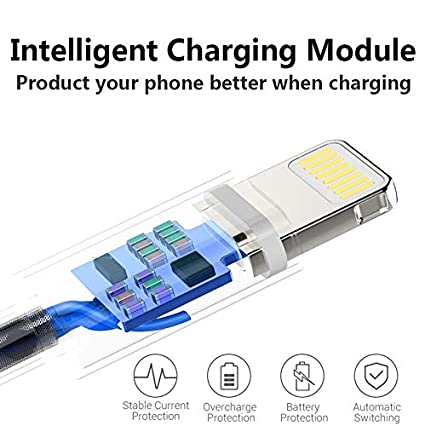
    From a cable structure perspective, a well-made USB-C cable typically includes multiple twisted pairs for SuperSpeed data, thicker VBUS and GND conductors for power, one or two CC lines, and at least one shielding layer to reduce interference. Quality cables also use high-purity copper and solid soldering at the connectors. Cheaper cables may skip proper shielding or use thinner wires, which can lead to overheating or unstable transfers. We occasionally produce for premium brands like Anker and UGREEN, and our quality is reliable.
  • Of course, compatibility across the setup is key. A laptop that supports 65W charging won’t get there if the charger only puts out 30W, no matter how good the cable is. It’s like a three-piece puzzle: device, charger, and cable all have to match.
  • At the high end, things like copper purity and E-Marker chips come into play. Premium cables often use higher-purity copper for better conductivity. The E-Marker chip acts like an ID card—it tells the device what the cable is truly capable of. Without it, even a capable cable might be capped at lower speeds for safety reasons.

In short, the combination of conductor quality, correct pin wiring, and proper E-Marker signaling determines whether a USB-C cable can consistently deliver both high power and fast data. Skimp on these, and the cable may fall far short of its advertised performance.

FAQ

No. A cable must support USB PD (or QC where applicable), include correctly wired CC pins (for PD negotiation), and use sufficient conductors (VBUS/GND pins), otherwise charging will be limited.

Share This Artcle:

Fast delivery

Fast delivery

Fastest delivery within 22 days

Quick proofing

Quick proofing

Fastest 3-day proofing cycle

After-sale protection

After-sale protection

24-month long warranty

1V1Customer Service

1V1Customer Service

Professional customer service follow-up

Scroll to Top