
Have you ever found yourself staring at a mess of cables on your desk, wondering why your brand-new phone won’t fast charge—or why transferring photos to your desktop computer takes forever? You’re definitely not alone.
Even though modern smartphones, tablets, laptops, and portable SSDs have almost entirely moved to the slim, reversible USB Type-C port, millions of everyday chargers, car dashboards, and desktop PCs still use the traditional, rectangular USB Type-A port.
That’s where a good USB Type-C to USB Type-A cable comes in. It serves as the crucial bridge connecting your shiny new gadgets to your reliable legacy gear.
While these cables look identical on the outside, what goes on inside can make or break your user experience. Pick the wrong one, and you could end up with excruciatingly slow charging, laggy file transfers, or even permanent hardware damage. As tech hardware testers who have evaluated hundreds of cables over the years, we wrote this plain-English guide to help you pick the perfect cable with total confidence.
1. Demystifying the Connectors: What’s the Difference?
Before diving into specs, let’s break down the two ends of this cable in simple terms:
USB Type-A (The Standard Rectangular Plug):
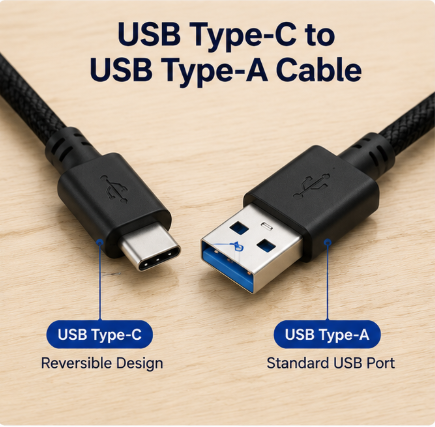
This is the classic USB plug we’ve used for over two decades. It’s rectangular, flat, and notorious for requiring three attempts just to plug in correctly. You’ll find USB Type-A ports on older wall adapters, desktop PCs, power banks, gaming consoles, and automotive head units.
USB Type-C (The Small Oval Plug):
This is the modern standard. It’s small, oval-shaped, and features a reversible design, meaning you can plug it in upside down without any hassle. USB Type-C ports support significantly higher power delivery and lightning-fast data throughput.
A USB Type-C to USB Type-A cable simply connects a Type-A host power/data source to a modern Type-C target device.
2. Common Everyday Uses: What Do You Need It For?
Not every cable is built for every job. Identifying your primary use case is the single most important step before hitting the “Buy Now” button:
-
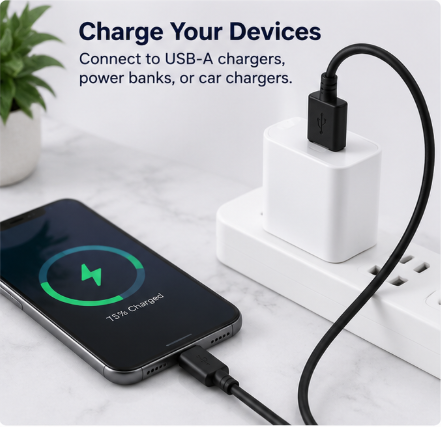
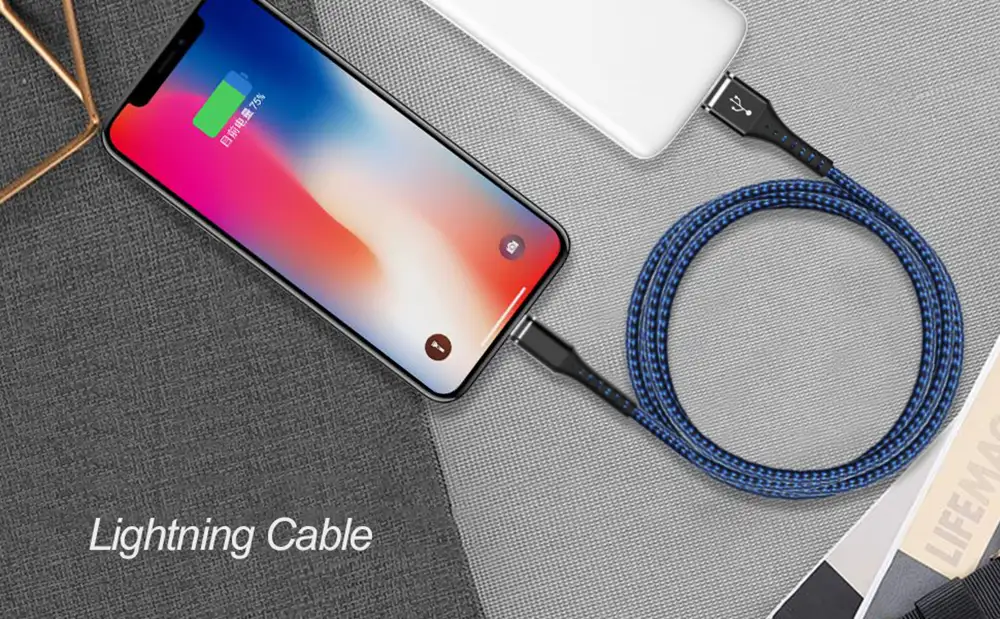
Smartphone and Tablet Charging: Plugging your new iPhone or Android phone into an older USB-A wall charger or power bank.
-
PC Data Transfer: Backing up photos, videos, and documents from your Type-C mobile device or portable external SSD to a desktop computer with USB-A ports.
-
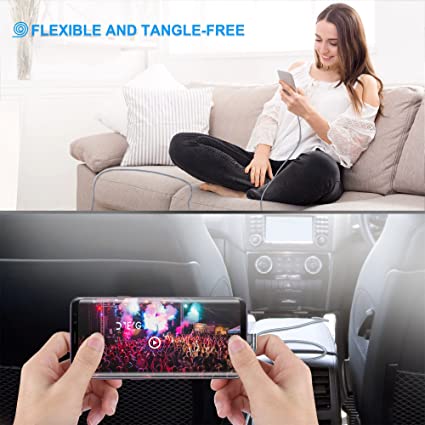
In-Car Connectivity (Apple CarPlay & Android Auto): Linking your phone to your car’s dashboard to mirror maps, music, and navigation.
-
Desktop Peripherals: Connecting Type-C mechanical keyboards, mice, wireless headset receivers, or capture cards to a PC tower.
3. The 3 Non-Negotiable Buying Factors (Where Most People Get Tricked)
Factor #1: Data Transfer Speed — Don’t Let USB 2.0 Hold You Back
If you buy a cheap $3 cable at a gas station, chances are it uses the legacy USB 2.0 standard.
USB 2.0 Cables: Limited to a maximum speed of 480 Mbps (roughly 40–45 MB/s in real-world scenarios). This is fine if you only want to charge your device, but transferring a 20GB video file will feel like watching paint dry.
USB 3.0 / USB 3.1 Gen 1 / USB 3.2 Gen 1 Cables: Capable of speeds up to 5 Gbps (roughly 500 MB/s). This is more than 10 times faster than USB 2.0!
USB 3.2 Gen 2 Cables: Capable of ultra-fast speeds up to 10 Gbps (over 1,000 MB/s), ideal for high-performance NVMe external SSDs.
Pro Tip: Look at the inside of the USB-A connector. High-speed USB 3.0/3.1 cables usually feature a blue or red plastic insert with 9 internal pins instead of the classic white/black 4-pin setup.
Factor #2: Fast Charging & The Crucial 56kΩ Safety Resistor
Safety should always be your top priority when dealing with electricity. Because USB Type-C devices are designed to draw significant amounts of current, plugging them into an older USB-A power source without safeguards can overload the charger, causing it to overheat or fry.
To prevent this, the official USB-IF specification mandates that every USB Type-C to USB Type-A cable must include an integrated 56kΩ (56 kilohm) pull-up resistor inside the C-connector head.
How the 56kΩ Resistor Works: It acts like an intelligent governor. It signals to your smartphone: “Hey, you’re plugged into an older USB-A legacy port, so please cap your power draw at a safe level (usually 5V/2.4A or 5V/3A).”
Fast Charging Protocols: If you want fast charging on brand-specific devices (like Qualcomm Quick Charge, Samsung AFC, or Huawei SCP), look for cables rated for 3A or 5A high current rating.
Important Note: A USB Type-A to Type-C cable CANNOT support USB Power Delivery (USB-PD) at 60W or 100W. High-wattage PD charging strictly requires a Type-C to Type-C cable on both ends.
Factor #3: Build Quality and Physical Durability
Cables get bent, twisted, stepped on, and yanked out of ports every day. Look for these structural features to ensure your cable lasts for years:
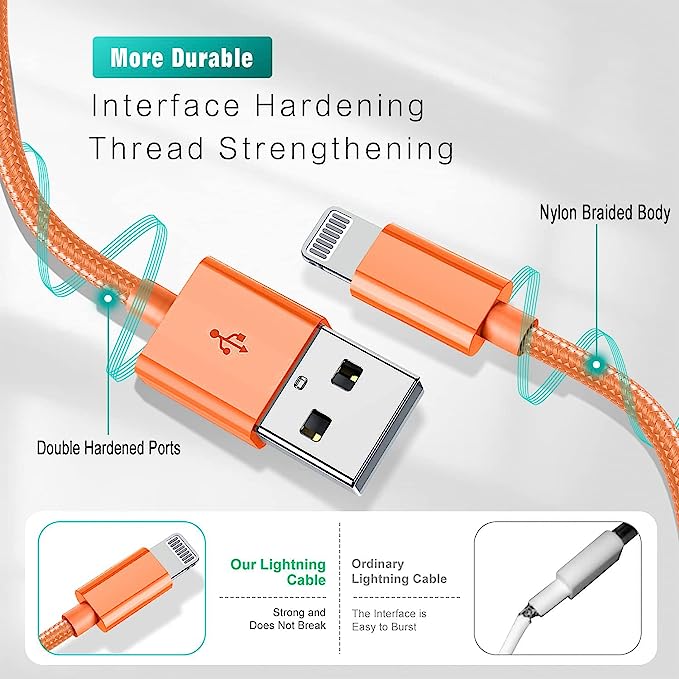
Double-Braided Nylon Exterior: Far more resistant to fraying, pets biting, and daily friction compared to cheap PVC or TPE plastic jackets.
Reinforced Strain Relief (SR Design): The joint where the cable meets the plug plug head is the #1 point of failure. Look for extended, flexible rubber collars that absorb bending stress.
Tinned Copper Cores & Foil Shielding: High-purity copper wire gauge (AWG) lowers resistance for faster charging, while aluminum foil shielding prevents signal interference when transferring data near power cords.
4. Frequently Asked Questions (FAQ)
Q1: Why does my Apple CarPlay or Android Auto keep disconnecting?
Answer: In-car systems are extremely sensitive to signal degradation and voltage drop. Cheap cables, extra-long cables (over 6 feet / 2 meters), or cables without proper foil shielding often drop the connection when you hit a bump or when the phone draws power. Use a high-quality braided 3.3ft (1m) USB 3.0 cable for rock-solid car connectivity.
Q2: Does cable length affect charging speed and data transfer?
Answer: Yes, absolutely! Physics dictates that longer cables have higher internal resistance, leading to a voltage drop. A 10-foot (3m) cable will naturally charge slightly slower and be more prone to data errors than a 3-foot (1m) cable. Stick to 3 to 6 feet (1–2 meters) for the best balance of flexibility and performance.
Summary Checklist: How to Pick the Right Cable
Before buying your next USB Type-C to USB Type-A cable, run through this simple 3-point checklist:
-
Verify the Safety Resistor: Ensure the product specifications explicitly list a 56kΩ pull-up resistor.
-
Match Your Needs: Choose USB 2.0 (480 Mbps) for basic charging, or USB 3.0/3.2 (5Gbps+) for fast photo/video backups and SSD drive transfers.
-
Demand Better Materials: Choose braided nylon with reinforced strain relief and a maximum length of 3.3ft to 6.6ft.
By keeping these straightforward criteria in mind, you’ll never waste money on a bad cable again!

Fast delivery
Fastest delivery within 22 days

Quick proofing
Fastest 3-day proofing cycle

After-sale protection
24-month long warranty

1V1Customer Service
Professional customer service follow-up