
How to Connect Your Phone to a TV
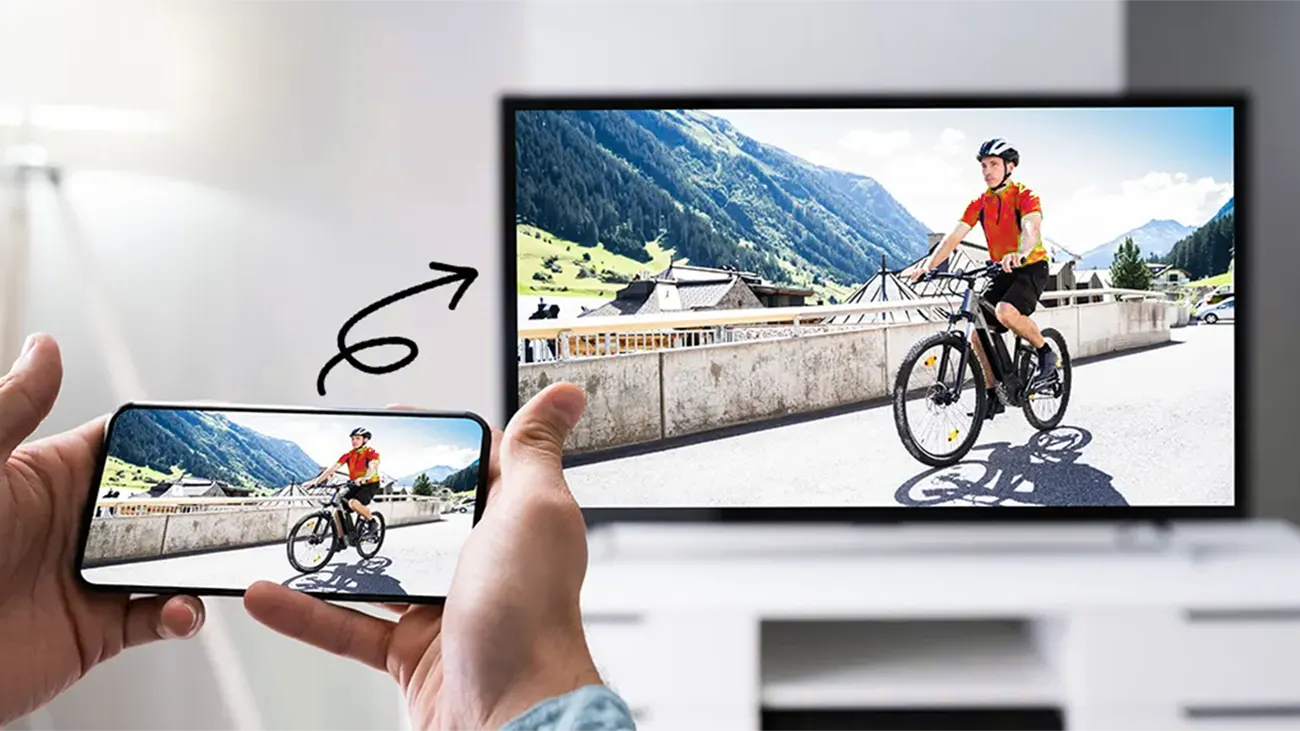
Have you ever sat down with your phone in hand, hoping to watch a video or browse your photos on the big screen – only to realize you’re stumped by the technology part? You’re not alone. I’ve been there too! No matter how powerful your phone or how smart your TV, getting them to “talk” to each other is sometimes the difficult part.
In this age of multi-device living – streaming, remote meetings, gaming or family photo slideshows, the ability to connect your phone to your TV isn’t a niche skill. It’s a superpower. But it’s not just about plugging things in; it’s about choosing the right method for your phone, your TV, and your use cases.
I’ll speak from my hands-on experience, and I’ve tested many adapters, hubs, and wireless setups (yes, in real rooms with real TVs). My hope is that by the end, you’ll not just understand how to connect phone to TV, and you’ll feel confident doing it yourself without stumbling over mismatched cables or confusing settings.
When you’re ready, let’s move into the first key part: What types of external ports a TV has, so you know what tools you need before you start.
What Types of External Ports Does a TV Have?
Whenever I walk behind the TV stand and stare at the numbers of slots, jacks and labels, it feels a bit like deciphering a treasure map. But once you understand what each one does, connecting your phone becomes much easier. Let’s break down the main external ports you’ll find on modern and older TVs, such as what they’re for, what they support, and which ones matter when mirroring your phone screen.
Here is a table to get us started – a very quick “port cheat sheet.”
| Port Type | Look / Label | Purpose | Notes on Using with Phone → TV |
|---|---|---|---|
| HDMI | Flat, wide port, often labeled “HDMI 1 / 2 / ARC / eARC” | Digital video + audio | The go-to port for phone-to-TV via adapter or hub |
| USB (Type-A, USB 2.0 / 3.0) | Rectangular standard USB port | USB storage, firmware updates, power | Rarely supports real-time video mirroring |
| DVI | Squarish port with many pins | Digital video (computer → display) | Video only; no audio; needs conversion if you adapt it |
| VGA | Classic 15-pin D-sub connector | Analog video | Very old tech; image quality and compatibility are limited |
| DisplayPort / Mini-DP | Rectangular port with one “cut” corner | Digital video/audio, daisy-chain support | More common on PCs/monitors than TVs |
| Component / Composite (RCA jacks) | Red, Blue, Green (component) or Yellow + Red/White (composite) | Analog video / audio | Only for older devices; image is lower-fidelity |
| SCART / S-Video | European-style multi-pin (SCART) or 4-pin mini-DIN (S-Video) | Legacy analog video/audio | Rare in modern TVs, mostly in older sets |
From what I’ve seen and tested, here’s what you should look for or prioritize on your TV:
- At least one HDMI port, this is your safest and most future-proof connection.
- HDMI labeled ARC / eARC is a plus, mainly for audio combos.
- USB is okay for the power or media playback, but not for mirroring.
- Legacy ports (like the VGA, DVI, component) are very useful only if no digital options exist, but they often require converters, and you’ll lose quality.
- If there’s a DisplayPort, so great, but it’s not common in TVs, so don’t count on it.
In the next part, I’ll walk you through how to connect your phone to a TV, distinguishing file browsing vs screen mirroring, and laying out what adapters or hubs you might need depending on the port types you have.
How Do I Connect My Phone to a TV?
Before you start plugging things in or hunting for software, let’s talk about why you want to connect, and the difference between some cases. Because connecting your phone to a TV isn’t a one-size-fits-all, the way changes depending on what you want to do.
When people say “connect my phone to TV,” sometimes they mean:
- File viewing, to show the photos, videos or documents stored on your phone (as a file source).
- Screen mirroring or projection, to display your phone’s screen on your TV in real time (all apps, movements or UI).
- Casting or streaming, to push content from supported apps (like the YouTube or Netflix) to play on the TV, while your phone acts like a controller.
These are not always interchangeable. For example, a TV might let you browse photos via USB, but not mirror your phone’s entire screen via that same USB port. Or an app might block screen mirroring but allow casting of videos.
So when we go through “how to connect,” I’ll talk about some methods by what they support, like the file browsing, mirroring or streaming, and what infrastructure they need (wired vs wireless).
Connect your phone to the TV via a wired connection.
Wired methods can give you more stability, lower latency and better compatibility, especially for your gaming or apps that need fast response.
But to use a wired method, you must pick a right connector path that matches both your phone and your TV ports. That’s where adapters, hubs, and protocols come in. Let me walk you through the main wired options.
USB-C / Micro-USB (with video output) → Adapter → TV.
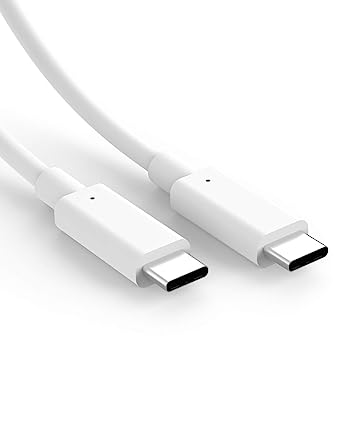
Many modern phones use USB-C ports, and some support Alternate Mode (Alt Mode) that lets the USB-C act as a video output. By an adapter or hub that converts USB-C to HDMI (or DisplayPort), you can send video + audio to the TV.
- Check whether your phone supports video output (cause not all do).
- Use a certified USB-C to HDMI (or multipurpose hub) adapter.
- Connect adapter’s HDMI port to an HDMI cable.
- Plug the HDMI into your TV’s HDMI input.
- On the TV, set the input source to that HDMI port.
If it works, your phone screen or the app’s content can show immediately. If not, check the cable quality, input source, or whether the phone supports the Alt Mode.
MHL and SlimPort (for some phones that don’t support USB-C Alt Mode).
Some older or midrange phones, especially using micro-USB, use MHL (Mobile High-Definition Link) or SlimPort as the bridge to HDTVs. These are legacy protocols that allow video output over USB.
- MHL: Converts from the micro-USB to HDMI. Some MHL adapters would provide a charging port so your phone can stay powered while displaying.
- SlimPort: Similar to MHL, but supports multiple video outputs, such as the HDMI, VGA, DVI.
You connect as: Your Phone → MHL adapter → HDMI → TV. If your TV has an MHL-enabled HDMI slot, you might even skip the adapter. But be careful, many TVs don’t support it directly, so the adapter is much safer.
HDMI Direct (some phones have micro-HDMI).
Rare these days, but some phones or tablets used to come with micro-HDMI ports, letting you use a straight HDMI cable with adapter to the TV. That’s the simplest cable path: your phone → HDMI cable → TV.
| Pros | Cons |
|---|---|
| Low latency, stable, works without Wi-Fi, supports high resolutions and bitrates | Needs correct adapters, limited mobility (you’re tethered), cable length constraints, and your phone must support video output |
If your TV only has HDMI and your phone supports USB-C Alt Mode or MHL, wired is often your most robust way.
Wireless connection from phone to TV.
Wireless is seductive – no cables, you can control from your couch, and multiple devices can share. But it’s more sensitive to network quality, latency, and protocol compatibility.
So, here are the main wireless methods:
Miracast (Screen Mirroring over Wi-Fi Direct).
Miracast is like “HDMI over Wi-Fi.” It establishes a peer-to-peer Wi-Fi Direct connection between phone and TV (no router needed) and mirrors the phone’s screen. Many Android phones and smart TVs support Miracast, under names like “Cast,” “Wireless Display,” “Smart View”.
- On the TV or display, enable “Screen Mirroring”, “Cast Screen” or similar mode.
- On your phone, go to Settings first → Display or Connections → Cast or Wireless Display or Screen Mirroring.
- Find your TV name, tap to connect it.
- Approve the connection on TV if prompted.
Miracast works well, but not all devices support it, and latency or image hiccups might occur on congested Wi-Fi or large spaces.
Google Cast / Chromecast / Built-in Casting (Android / Smart TVs).
Many Android devices use Google Cast / Chromecast as their default wireless “casting” method. Rather than mirroring the whole screen, supported apps like YouTube, Netflix, Spotify will cast the content to the TV, letting your phone work as a remote. Some modern smart TVs integrate Chromecast natively.
- Make sure your phone and TV (or Chromecast dongle) are on the same Wi-Fi network.
- In the cast supported app, tap the “Cast” icon and pick your TV.
- The content plays on the TV; your phone is the controller (you can pause, skip…..).
This method is very energy-efficient and supports high video quality, but you will lose full-screen mirroring (only supported apps cast).
AirPlay (for Apple ecosystems).
If you have an iPhone or iPad, AirPlay is Apple’s wireless streaming or mirroring protocol. On compatible Apple TVs or smart TVs supporting AirPlay, you can mirror your entire phone or content.
Steps are very similar: open the Control Center → Screen Mirroring → pick your TV.
Wireless HDMI / Wireless Extension Adapters.
There are devices (wireless HDMI kits) that convert the HDMI signal to radio and transmit it to a receiver plugged into your TV. Think of it like “cable but without wires.” Useful when you don’t have good Wi-Fi or want cable-level performance.
You can plug a transmitter near your phone (or adapter) and a receiver into the TV’s HDMI.
Adapter / Hub / Converter Options & Examples.
Since wired and wireless each have many variants, here’s a friendly list of adapter types and how you might choose between them.
| Adapter / Device | Use Case | Pros | Things to Watch Out |
|---|---|---|---|
| USB-C to HDMI adapter / hub | Most modern Android / iPad (USB-C) phones | Simple, reliable, direct | Phone must support Alt Mode; adapter quality matters |
| MHL adapter (micro-USB to HDMI) | Older phones with micro-USB | Allows video output over USB | Phone must support MHL; may need external power |
| SlimPort adapter | Legacy devices | More output options (HDMI, VGA, etc.) | Less common |
| Wireless HDMI kit (like the TX or RX) | No Wi-Fi or want the cable performance wirelessly | Low-latency and full-resolution | Cost / line-of-sight / interference matters |
| Chromecast or built-in cast-capable TV | Flexible casting of the app content | Easy, no cables | Not full mirroring; depends on your network |
| Miracast or Wireless Display | Full screen mirroring without cables | Direct P2P, no router needed | Device support and lag may be some issues |
| AirPlay for iOS | iPhone or iPad to Apple TV or compatible TV | Full mirroring or casting (if supported) | Apple ecosystem only |
When choosing, I will think: Which ports does your TV have? Does your phone support video out? Do you have a reliable Wi-Fi? Do you care about latency (for gaming)?
Which Method Works Best in Which Scenario?
Let me tell you some example scenarios and which methods are likely best.
- You want to show vacation photos or videos to family without glitch → use USB-C to HDMI wired or MHL if your phone supports it.
- You want to watch Netflix or YouTube from phone but on TV → casting with Chromecast / built-in TV cast is easy and clean.
- You want to mirror your whole screen (apps + UI behavior) → use Miracast (if supported) or AirPlay (on iOS).
- You don’t have Wi-Fi, or want performance close to wired but without cable → wireless HDMI kit.
- Your TV is older and doesn’t support wireless or HDMI (rare case) → use SlimPort or MHL with converters (if phone supports them), or get a casting dongle (Chromecast, Fire Stick)
How to Connect Your Phone to a TV Using USB-C to HDMI?
When conditions are right, USB-C → HDMI is often the cleanest, most dependable wired way to mirror your phone onto a TV. But “right” is doing all the little checks first. Let me walk you through the full process and things I learned by trial and error. Before buying cables or adapters, do this checklist:
- Does your phone’s USB-C port support video output?
Not all do. The phone must support DisplayPort Alternate Mode (DP Alt Mode) (or in rare cases HDMI Alt Mode) for the USB-C port to carry video. - Is the adapter or cable rated for the resolution you want (1080p / 4K)?
If you want 4K @ 60Hz, the adapter must be able to support that. Some basic ones only offer 1080p or 30Hz. - Does your TV have a free HDMI port?
If all HDMI ports are in use, you’ll have to free one, or consider using an HDMI switch. - Use a good-quality cable or adapter.
Cheap or damaged cables are often the reason failed connections happen.
Once those are confirmed, it’s time to connect.
Step-by-Step Guide to Connect (USB-C → HDMI).
Here’s how I’d do it and how I tell others to do it:
| Step | Action | What to Watch Out For / Tips |
|---|---|---|
| 1. Power off or lock your phone (optional but safer start) | This avoids glitches when plugging/unplugging | Some phones detect automatically; others misbehave if hot-plugged |
| 2. Plug the USB-C end of adapter into phone | Fit it very firmly | Ensure it’s fully seated, cause loose connection is a frequent culprit |
| 3. Connect the HDMI cable from the adapter to the TV’s port | Standard HDMI cable, often HDMI 2.0 or better | If adapter has multiple ports, don’t forget which HDMI port you used |
| 4. Turn on your TV | You need the TV on | Some TVs take a second or two to detect new video sources |
| 5. Switch the TV’s input or source to that HDMI port | Use remote, menu “Input / Source / HDMI” | TVs often keep the last used input unselected, so switching is important step |
| 6. On your phone, confirm display mirroring or output | In many cases, this often happens | If not, go to Settings → Display → “External Display or Cast or Screen Mirroring” |
| 7. Adjust resolution / aspect ratio if needed | Some phones let you pick output resolution in settings | If image is cropped or black borders appear, tweak aspect or resolution |
If everything is good, your phone’s screen or app content should appear on the TV.
Wired vs Wireless - Which Is Better to Connect Your Phone to a TV?
When I help people set up phone to TV connections, this is the question I always ask: What matters more to you – performance or convenience? Because wired and wireless both have strengths and tradeoffs. Let me walk you through what I’ve observed, tested, and learned and help you figure out which is best for your situation. To compare fairly, here are the dimensions I care most about and you should too:
- Latency / lag – how quickly actions on your phone reflect on the TV
- Image / video quality / stability – sharpness, refresh, stutter
- Convenience / mobility – ease of setup, freedom of movement
- Reliability – robustness under imperfect conditions (network instability, interference)
- Complexity & cost – how much you need to spend or tinker
With those in mind, here’s how wired and wireless stack up.
| Wired vs Wireless | ||
|---|---|---|
| Criterion | Wired (such as the USB-C → HDMI, HDMI cable) | Wireless (Miracast, Chromecast, AirPlay, wireless HDMI kits) |
| Latency / Lag | Minimal. Almost instant reaction. Great for gaming, fast UI transitions, presentations. | Higher latency. In good Wi-Fi environments it can be okay, but in challenging networks, lag or stutter occurs. |
| Image / Video Quality & Stability | Very stable. High bandwidth, minimal compression, fewer drops. Especially good at high resolution / high bitrate content. | Depends heavily on your Wi-Fi or signal strength. Compression, buffering, and quality dips may appear. |
| Convenience / Mobility | You must stay physically tethered by the cable length. Less flexible. | You’re free to move around, no cable pulling, no fuss. |
| Reliability in Real-world Conditions | Usually wins, because there’s no reliance on Wi-Fi, interference, network load. | More fragile: a crowded network, interference, distance, all can ruin the experience. |
| Complexity & Cost | You need a compatible adapter or quality cable. But once set, it “just works.” | You may need smart TVs, dongles (Chromecast, Apple TV), and good Wi-Fi infrastructure. Sometimes hidden costs. |
When You Almost Always Want Wired.
From having tested setups in conference rooms, homes, and client pitches, here are scenarios where wired is the smarter default:
- Gaming or interactive apps: you can’t afford lag. A 50ms delay in a game or UI transition is awkward.
- Presentations or live demos: you want guaranteed responsiveness and zero surprise lag.
- High-definition content or large file transfers: when streaming in 4K or high bit rates, wired gives you headroom.
- Weak or congested Wi-Fi environments: if your home or workspace has shaky Wi-Fi, wired avoids that entire source of failure.
Even many professionals run a wired “backup” cable in meeting rooms just in case the wireless fails, and I’ve seen it more than once.
When Wireless Makes More Sense (and works well).
That said, wireless is super compelling and in many good setups it’s more than adequate. Here’s when I’d lean wireless:
- Watching movies, videos, photos in the living room – casual use, where tiny lag is less noticeable.
- Casting from apps (YouTube, Netflix, Spotify) more than mirroring the entire UI.
- Mobility & convenience matter more than perfection, such as lying in bed, walking around while controlling the screen.
- Your Wi-Fi is strong, stable, not overcrowded, if you have a solid network, wireless performance improves significantly.
In these cases, wireless gives you a smoother, cleaner experience with fewer cables and less fuss.
One user on a tech forum put it this way: “Apps with a wire are going to be better than casting with wifi. Plus there’s a chance your show can’t be cast. Basically, the less distance and complexity to your streaming, the better it’s going to be.” This echoes what I tell clients: when everything goes well, wireless is gorgeous, but when something goes wrong, wired is your fallback.
From my experience, here’s the “sweet spot” rule of thumb:
Try wireless first, because it’s clean, user-friendly, and often “good enough.” But always have a wired backup (a cable + adapter) in your toolbox, especially for high-stakes or latency-sensitive tasks. That way you get flexibility and reliability.
Why Won’t My Phone Connect to My TV?
Hey!!! It’s happened to me too. You set everything up, plug in your cable (or hit “Cast”), and… nothing. Blank TV. No sound. Glitches. It’s frustrating. But in almost every case, there’s a logical reason behind it, and a fix. Here’s how I diagnose problems, and how you (or your readers) can too. I’ll walk you through common failure scenarios, what typically causes them, and what to try step by step.
Before jumping into detailed fixes, use this quick checklist, it often helps you catch the culprit fast.
- Are both devices turned on and awake?
- Is the TV’s input set to the correct HDMI or source?
- Are cables and adapters firmly connected (no loose ends)?
- Is your phone or the adaptor compatible with the required video output standard?
If all that checks out, we can dig deeper. I like using a table plus explanations, because when you’re troubleshooting you want clarity.
| Common Problems & Fixes | ||
|---|---|---|
| Symptom / Issue | Likely Cause(s) | What to Try / Fix |
| No image on TV or blank screen | • Phone doesn’t support video output (USB-C port is power/data only) • Adapter or cable is incompatible or damaged • Wrong TV input or no signal • HDCP or content protection blocking | • Confirm your phone spec for video out • Use a known good adapter + cable • Switch TV to correct HDMI/input • Use lower resolution • Try with non-DRM content first |
| Video appears but black bars or not full screen | Resolution or aspect mismatch between phone and TV | Adjust resolution or scaling mode in phone/TV settings (fill / crop / fit screen) |
| No sound (video shows but silent) | Audio is not set to external / HDMI output | In phone audio or display settings, direct audio to “HDMI / external display” Check TV audio settings |
| Video flickers / drops out / unstable | Weak signal (wireless) / cable or adapter defect | For wired: shorten cable, swap to better-quality cable/adapter For wireless: improve Wi-Fi strength, reduce interference, move devices closer |
| HDCP / “protected content” error / black screen for some apps | Device(s) don’t support required HDCP version for that content | Use an adapter and TV that support the needed HDCP level Or test with non-protected content to isolate the issue Update firmware |
| Wireless mirroring / casting not shown / cannot connect | • Device not in same Wi-Fi network • Miracast / AirPlay / casting disabled • Network / firewall interference • Device doesn’t support Miracast / wireless display | • Ensure both phone and TV (or dongle) are on same Wi-Fi • Enable wireless display / screen mirroring on both ends • Turn off VPN / firewall temporarily • Update drivers / firmware • Try 2.4 GHz band if 5 GHz is problematic |
| Adapters / cables get hot, or the connection fails over time | Overcurrent, poor heat dissipation, cheap parts | Use adapters with better design / cooling Avoid long passive chains Use active adapters when needed |
| Phone settings blocking output (USB mode, default configuration) | Some devices default to “charging only” or “data only” | In Developer Options or USB settings, change default USB connection to “Display / video output” if available |
| HDMI port on TV is ARC / audio-only or special purpose | Some TVs reserve one HDMI for ARC or eARC, not for external video inputs | Avoid using that ARC/eARC port for video, and use a standard HDMI port |
Wireless-Specific Troubleshooting Tips.
Since wireless mirroring / casting has its own quirks, here are extra tips:
- Use 5 GHz Wi-Fi when available (gives higher throughput), but if 5 GHz is weak or blocked, 2.4 GHz may work more reliably.
- Make sure your router and devices aren’t overloaded (many devices, streaming…..).
- Turn off VPNs, firewalls, or network isolation which might block device discovery.
- Update firmware of TV, casting dongle, or adapter.
- In Windows / PCs, outdated Wi-Fi or graphic drivers often break Miracast connectivity.
- Some TVs / devices have “sleep” or power-saving modes that shut off wireless display hardware, disable those if possible.
Wow~ you’ve just journeyed through the entire process of connecting your phone to a TV: from understanding TV ports, choosing wired or wireless options, doing USB-C → HDMI step by step, weighing pros and cons, and digging into the “why it might fail” troubleshooting.
If you feel overwhelmed or want reliable hardware that just works (without the “which adapter do I need?” guessing), check out our tested adapters and hubs at Apphone. As an OEM manufacturer, we handle design, testing, and production in-house, so that you can get adapters and hubs built to your specifications with confidence in performance across phones and TVs.
FAQ
Can I connect my phone to a TV using just a USB cable?
Usually no, not for real-time mirroring.Most USB ports on TVs are for media playback or service firmware updates, not for live screen output. Some TVs might support a “media device or file transfer” mode when you plug in your phone, but that’s different from mirroring your entire screen.
In general, to get full mirroring you need an adapter (USB-C to HDMI or MHL converter), or wireless casting.
If I cast content from apps (YouTube, Netflix), is that considered “connecting phone to TV”?
Kind of, it’s a lighter form of connection. When you cast from an app, you’re sending that app’s content to play on the TV, while your phone becomes a remote controller. That’s so different from the full screen mirroring, where your phone screen appears on the TV. Casting is more efficient and stable for those supported apps; mirroring is more flexible (everything but possibly slower).
Does screen mirroring / casting eat up my mobile data?
Not directly, if you are streaming or mirroring the content already on your phone or on the same local network.
However, if the content you’re casting is streaming from the internet, then that part uses data or Wi-Fi. But casting or mirroring itself doesn’t consume extra cellular data beyond what the streaming app already does.
My adapter says it supports 4K, but only 1080p displays, why?
This is common. Possible reasons are:
- The TV’s HDMI input might not accept 4K (or this particular port is limited)
- The adapter or cable itself may only support 1080p
- The phone’s output settings or handshake fallback to 1080p for compatibility
You can try a certified 4K cable, then force 4K output in settings (if available), or verify that your TV’s HDMI port supports 4K.
Why can’t I see my TV in the “Cast / Screen Mirroring” list?
Possible causes are:
- Your phone and TV are not on the same Wi-Fi network, same subnet or different bands
- The TV or dongle has casting or mirroring disabled
- A VPN, firewall or network isolation is blocking discovery
You can try reconnecting both devices to the same network, enabling cast or mirroring on the TV and turning off VPN/firewall as a test.
Share This Artcle:



Fast delivery
Fastest delivery within 22 days

Quick proofing
Fastest 3-day proofing cycle

After-sale protection
24-month long warranty

1V1Customer Service
Professional customer service follow-up