
1. USB Type-C Is More Than Just a Connector
In many people’s minds, USB Type-C (USB-C for short) is simply a connector that “can be plugged in either way and is smaller than its predecessors.” While its physical convenience is undoubtedly its first major success, its true greatness lies in its versatility.
In the past, we used Micro-USB to charge our phones, USB Type-B to connect to printers, and USB Type-A for flash drives—all while having to distinguish between the correct orientation. The advent of Type-C aims to achieve “one port to rule them all.”
Quick Fact: The Difference Between a Connector and a Protocol
Many people confuse Type-C with USB 3.0. In reality, Type-C refers to the physical shape of the connector (like a door on a house), while USB 3.0 refers to the data transfer protocol (like the goods moving through that door). Not all Type-C cables are high-speed; some even operate at the slower speeds of USB 2.0.
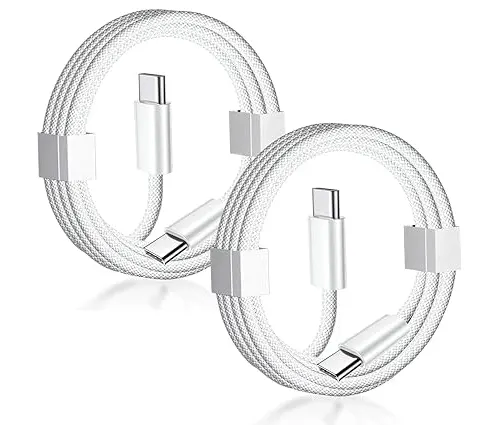
Type-C features 24 metal pins, far more than older connectors. It is precisely these densely packed pins that allow it to handle charging, file transfers, video streaming, and even serve as a bus interface within the motherboard.
2. The Secret Behind Transfer Speeds: USB 2.0 to USB4
This is where users most often run into trouble. If you search for “Type-C cables,” prices range from a few dollars to over two hundred. If you buy one and find it takes half an hour to transfer a movie, you’ve likely purchased a Type-C cable that only supports USB 2.0.
USB 2.0
Even with a Type-C port, many older phones or low-end cables still only support 480Mbps. In today’s fast-paced world, this speed is already quite inadequate.
USB 3.2
This includes Gen 1 (5Gbps), Gen 2 (10Gbps), and Gen 2×2 (20Gbps). Most mainstream SSD enclosures now use this standard.
USB4 is currently the top-of-the-line standard. Its base speed is 40Gbps, and it is fully compatible with Thunderbolt 3/4, meaning you can connect external graphics cards and high-end 8K displays. In 2024, the USB-IF organization also launched USB4 Version 2.0, with theoretical speeds exceeding 80Gbps and even reaching 120Gbps. This represents a quantum leap, meaning you can copy a 100GB 4K movie in just a few seconds using a single thin Type-C cable.
3. The Power Source: The USB Power Delivery (PD) Protocol
Previous charging ports could only handle weak currents of 5V and a few amps, but the USB-PD (Power Delivery) protocol introduced by USB-C has completely rewritten the history of charging.
The PD protocol allows devices to “communicate” with each other via the CC (Configuration Channel) pin. A smartphone might tell a power bank, “Give me 9V/3A,” and the power bank replies, “No problem, coming right up.” This negotiation mechanism prevents the risk of damaging devices and enables ultra-fast charging.
PD 3.0 (up to 100W)
This is currently the most widespread standard, sufficient to power high-performance laptops.
PD 3.1 (Extended Power Range, up to 240W)
By increasing the voltage (up to 48V), it can power gaming laptops and even some lightweight home appliances.
It’s important to note that even for 100W charging, the cable itself must be capable of handling a 5A current. Standard cables typically only support 3A (meaning a maximum of 60W), so if you’re trying to charge a MacBook Pro, the charging speed will be significantly reduced.
4. What Else Can It Do Besides Charging? Video Transmission and Alt Mode
This is precisely where USB-C gets a bit mysterious. You might buy an expensive cable only to find that it simply won’t display a signal on your monitor. Why?
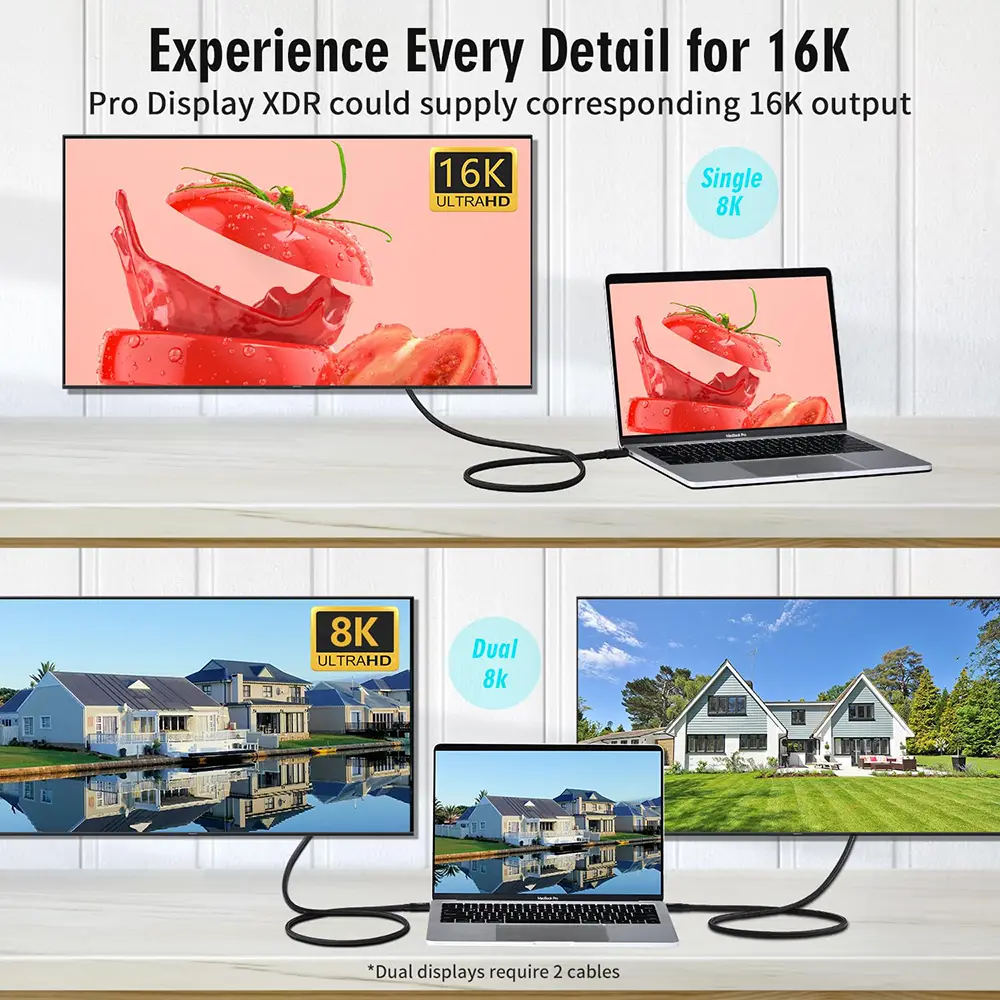
This involves Alt Mode (Alternate Mode). The USB-C port can repurpose its pins for other signal types. The most common ones are DisplayPort (DP) and HDMI.
A perfect Type-C cable should be “all-in-one.” It should be capable of simultaneously charging a laptop, transmitting mouse and keyboard signals, and mirroring the laptop’s desktop to an external monitor—all with a single cable. This is the so-called “all-in-one cable” solution. For office workers and gamers, this greatly simplifies the desktop setup, eliminating the need for a tangled mess of adapters.
Pitfall Guide: Video Output Identification
Not every cable labeled “supports charging” actually supports video output! Generally, cables that support USB 3.1 or higher specifications are more likely to support video. USB 2.0 “charging-only cables” have only four core wires and lack the physical pathways required to transmit video signals.
5. E-Marker Chip: The Cable’s “Data ID”
If you’ve seen those 100W or 240W fast-charging cables, you’ll notice their connectors are often longer and stiffer. Inside, there’s actually a chip called an E-Marker.
E-Marker stands for Electronically Marked Cable. It acts like the cable’s “ID card.” When the laptop connects to the charger, they read the information stored in this chip:
“Hey, I can handle up to 40Gbps.”
“I can handle a maximum current of 5A—100W at full load is no problem.”
“I’m made by a reputable manufacturer, so you can power me up with confidence.”
Without this chip, the PD protocol typically caps power output at 60W (20V/3A) for safety reasons. So, if you’re using a 100W GaN charger but find charging is painfully slow, remember to check if your cable has an E-Marker.
6.The Potential Dangers of Substandard Data Cables
Many people believe that as long as a data cable can carry power, it’s good enough. However, for cables like Type-C—which handle high voltages and high currents—substandard cables are nothing short of “electronic killers.”
1. Risk of Voltage Breakdown: In the PD 3.1 era, voltages can reach up to 48V. If the cable’s insulation material fails to meet standards or the spacing between pins is not strictly controlled, arc breakdown can easily occur, instantly rendering the computer’s motherboard unusable.
2. Overheating Due to Current: The copper core inside low-quality cables is too thin. When you force a 5A current through the cable, the excessive resistance generates heat that can melt the outer casing or even cause a fire. This is why high-current cables must be equipped with an E-Marker chip to prevent unsafe connections.
3. Signal Loss Due to Crosstalk: Since Type-C integrates extremely high-frequency signals (up to 80Gbps for USB4), if the shielding is subpar, data packets will be lost in large quantities. This can cause frequent disconnections with external hard drives, screen flickering on monitors, and even interfere with nearby 2.4GHz Bluetooth headphones.
Never use unbranded, uncertified cables bought from street vendors with your expensive smartphones or laptops. You can opt for third-party brands, but make sure they have the appropriate certification marks (such as MFi or USB-IF certification).
7. Glossary of Technical Terms:
USB PD (Power Delivery)
A universal fast-charging protocol that allows smartphones, laptops, and monitors to share a single charger.
DP Alt Mode
Enables direct display output via USB-C, supporting up to 8K resolution.
PPS (Programmable Power Supply)
A subset of PD 3.0 that allows for fine-tuning of the voltage (in 20 mV increments) to reduce heat generation, making it suitable for fast charging of mobile phones.
EPR (Extended Power Range)
The core feature of PD 3.1, which increases the power limit from 100W to 240W.
8. Overlooked Hardware Details: Pins and Shielding
Why do some cables break after just two months of use? Or why does your computer occasionally go black?
High-quality Type-C cables feature a thick layer of metal braided shielding beneath the outer jacket. This is not only for durability but, more importantly, to prevent electromagnetic interference (EMI). High-speed signals in USB 3.0 and above are extremely fragile. If you notice your mouse lagging while using Wi-Fi or Bluetooth, it’s likely because that cheap Type-C cable lacks proper shielding, causing signal leakage that interferes with the 2.4GHz wireless band.
Additionally, the gold-plating process of the connectors, the one-piece cold-press molding technology, and the internal TPE reinforcement material are all factors that determine whether a cable costs 10 or 100 yuan.
9. Buying Guide: How to Choose a Cable That Meets Your Needs?
As an average consumer facing a vast array of options, I recommend purchasing based on your specific needs:
Office Workers / Ultrabook Users
Choose a cable that supports PD 100W + USB 3.1 (10Gbps). This will meet your needs for 4K screen mirroring and fast charging. Recommended length: 1.5 to 2 meters.
Tech Enthusiasts / External Hard Drives / Graphics Card Docks
Look for USB4 40Gbps. Although it’s more expensive, this is the ultimate standard for the next few years. It’s compatible with Thunderbolt, so one cable covers all your needs.
In-Car / Bedside Charging
These scenarios don’t require high speeds, so a basic USB 2.0 cable from a major brand will suffice. The advantages are flexibility, resistance to kinks, and affordability.
But with the widespread adoption of USB4, the future will truly become a reality: whether it’s a smartphone, camera, computer, or vacuum cleaner, as long as it’s powered, a single cable will handle it all.